

कभी किसी article को clean PDF में save करना हो, image का background हटाना हो, PDF merge करनी हो, voice को text में बदलना हो या किसी suspicious link को open करने से पहले check करना हो—ऐसे छोटे online कामों के लिए हर बार नया software install करना ज़रूरी नहीं होता।
Internet पर कई ऐसी websites हैं जिन्हें browser में खोलकर सीधे काम किया जा सकता है।
Problem सिर्फ़ यह है कि “useful websites” की पुरानी lists जल्दी outdated हो जाती हैं। कोई service बंद हो जाती है, किसी का free plan बदल जाता है और किसी tool में पहले से कहीं ज़्यादा features जुड़ जाते हैं।
इसीलिए इस updated list में ऐसे tools शामिल किए गए हैं जो 2026 में भी practical use cases solve कर रहे हैं।
यह list सिर्फ़ bloggers के लिए नहीं है। Students, office users, freelancers, small business owners, content creators और सामान्य internet users भी इनमें से कई websites को अपने काम में use कर सकते हैं।
एक बात शुरुआत में clear रखें: किसी website का free plan, upload limit या premium feature समय के साथ बदल सकता है। और जहाँ आप files upload कर रहे हैं, वहाँ sensitive documents भेजने से पहले privacy और security को समझना ज़रूरी है।
इस लेख में आप क्या सीखेंगे?
- PDF और document tools
- Writing और voice tools
- Image editing websites
- Research के useful tools
- Online safety websites
- सही tool चुनने का तरीका
Documents और Writing के लिए Useful Websites
1. PrintFriendly — Web Page को Clean PDF में बदलने के लिए
कभी किसी long article, recipe, report या tutorial को print करना हो तो webpage के साथ advertisements, menu, sidebar और दूसरी unnecessary चीज़ें भी print होने लगती हैं।
PrintFriendly ऐसे webpages को cleaner format में prepare करने के लिए useful है।
आप webpage का address देकर उसका simplified version बना सकते हैं और फिर उसे print या PDF के रूप में save कर सकते हैं। Current PrintFriendly service PDF-related tools भी offer करती है, लेकिन इसका सबसे straightforward use अभी भी clutter-free web page बनाना है। (PrintFriendly)
कहाँ काम आएगा?
- Online article को PDF में save करने में
- Study material print करने में
- Recipe या guide का clean print निकालने में
- Research references offline रखने में
- Unnecessary webpage elements हटाने में
एक बात ध्यान रखें—किसी paid या copyrighted content को PDF बनाकर redistribute करने का अधिकार automatically नहीं मिल जाता। Tool का use personal reference या permitted use के हिसाब से करें।
2. iLovePDF — PDF से जुड़े छोटे-बड़े काम एक जगह
PDF के साथ काम करते समय अलग-अलग problems आती हैं।
कभी दो PDF files merge करनी हैं, कभी बड़ी PDF compress करनी है, कभी pages अलग निकालने हैं और कभी PDF को Word, Excel या PowerPoint format में convert करना है।
iLovePDF इन कामों के लिए एक consolidated web toolkit देता है। इसकी current feature list में merge, split, compress, organize, convert, OCR और दूसरे PDF tools शामिल हैं। (iLovePDF – Online tools for PDF)
Practical use
मान लीजिए आपके पास 5 अलग PDF documents हैं जिन्हें एक file में client को भेजना है।
Files चुनें
↓
Order arrange करें
↓
Merge करें
↓
Final PDF check करें
↓
फिर share करें
Sensitive banking statement, Aadhaar copy, confidential contract या private company document जैसी files किसी third-party service पर upload करने से पहले उसकी privacy policy और अपने organization की security policy जरूर check करें।
अगर आपका काम सिर्फ़ PDF conversion से आगे document understanding तक जाता है, तो ChatGPT में PDF और documents upload करके काम लेने का तरीका भी useful हो सकता है।
3. Grammarly — English Writing को Polish करने के लिए
अगर आपको English में emails, reports, LinkedIn posts, articles या professional messages लिखने पड़ते हैं, तो Grammarly writing assistance के लिए useful tool हो सकता है।
Current Grammarly tools spelling, grammar, clarity, rewriting और tone-related suggestions provide करते हैं। इसका free option available है, जबकि कुछ advanced capabilities paid plans में होती हैं। (Grammarly)
यह खासकर उन users के काम आता है जिन्हें idea पता है लेकिन English sentence को clear और professional बनाना मुश्किल लगता है।
कहाँ useful है?
- Professional email
- Resume text
- Cover letter
- English article
- Client communication
- LinkedIn post
- Report proofreading
लेकिन suggestion accept करने से पहले meaning check करें।
Grammar सही होने का मतलब यह नहीं कि information भी सही है।
अगर writing में AI assistance लेते हैं, तो बेहतर AI prompt लिखने के लिए Prompt Engineering समझना भी useful है।
4. Dictation — बोलकर Text लिखने के लिए
कभी ideas दिमाग में जल्दी आते हैं, लेकिन typing slow लगती है।
ऐसी situation में Dictation voice-to-text tool useful हो सकता है।
Dictation.io speech को real-time text में convert करता है और Hindi, Urdu, English सहित कई languages को support करता है। इसकी current information के अनुसार converted text browser में locally store होता है। Tool Google Chrome और internet connection के साथ काम करता है। (dictation.io)
इसका practical use कहाँ है?
- Article का rough draft बोलकर बनाना
- Hindi notes तैयार करना
- Long email dictate करना
- Lecture के बाद ideas capture करना
- YouTube script का first draft बनाना
- Meeting के बाद quick summary बोलना
यहाँ एक important limitation है।
Speech-to-text perfect नहीं होता।
Names, technical terms, punctuation और Hinglish words गलत transcribe हो सकते हैं।
इसलिए workflow रखें:
बोलें
↓
Text generate होने दें
↓
Names और numbers check करें
↓
Language clean करें
↓
Final version save करें
5. DeepL — Translation और Multilingual Work के लिए
अगर आपको दूसरे language का email, paragraph, article या document समझना है, तो DeepL translation के लिए useful option है।
Current DeepL Translator text translation के साथ file translation भी support करता है। Hindi सहित कई languages supported हैं, जबकि document translation के formats और usage limits plan के अनुसार अलग हो सकते हैं। (DeepL Help Center)
कहाँ useful हो सकता है?
- Foreign-language email समझने में
- Research material का rough translation
- International client communication
- Multilingual content workflow
- Document translation
लेकिन legal, medical, financial या culturally sensitive text में machine translation को final authority न मानें।
Context बदलने से sentence का meaning बदल सकता है।
Design, Photos और Images के लिए Useful Websites
6. Canva — Quick Designs बनाने के लिए
Canva शायद इस list के सबसे versatile visual tools में से एक है।
आज Canva सिर्फ़ social media post बनाने तक limited नहीं है। Current platform presentations, documents, social designs, videos, websites और दूसरे visual formats के लिए templates और drag-and-drop editing provide करता है। (Canva)
Beginners इसे कहाँ use कर सकते हैं?
- Instagram post
- YouTube thumbnail
- Resume design
- Presentation
- Business poster
- Invitation
- Product catalog
- Blog graphic
Templates आपको starting point देते हैं, लेकिन template को बिना edit किए publish करने से design generic लग सकता है।
Brand name, fonts, spacing, images और message को अपने purpose के हिसाब से customize करें।
अगर visual के लिए अच्छे source images चाहिए, तो BadteRaho की Bloggers और Projects के लिए free stock photo websites वाली guide भी useful है।
7. Photopea — Browser में Advanced Photo Editing
कभी simple template editor पर्याप्त नहीं होता।
आपको image के layers edit करने हों, masking करनी हो, PSD file खोलनी हो या detailed photo manipulation करनी हो, तब Photopea useful हो सकता है।
Photopea खुद को browser-based photo editor के रूप में offer करता है और cropping, resizing, layers, masks तथा blending जैसे advanced editing tools को support करता है। इसकी current site के अनुसार processing device पर होती है और files editor use करते समय device से बाहर upload नहीं की जातीं।
किसके लिए useful?
- Bloggers
- Thumbnail designers
- Students
- Freelancers
- Social media creators
- Basic graphic designers
लेकिन advanced editing सीखने में थोड़ा समय लगेगा।
यह Canva जैसा template-first workflow नहीं है।
अगर आपका goal AI की मदद से नया visual generate करना है, तो AI से Photo बनाना सीखने की beginner guide अलग use case cover करती है।
8. remove.bg — Photo का Background हटाने के लिए
Product photo, passport-style image, poster या presentation बनाते समय अक्सर subject को background से अलग करना पड़ता है।
remove.bg इस काम को automatically करने के लिए बनाया गया है।
Official information के अनुसार, tool AI की मदद से foreground detect करके image का background remove कर सकता है। (remove.bg)
Practical examples
- Product photo का white background
- Poster में person cutout
- Marketplace image
- Presentation graphic
- Transparent PNG
- Social media creative
Result हर image में perfect नहीं होगा।
Hair, transparent objects, similar foreground-background colors और complex edges में manual correction की जरूरत पड़ सकती है।
इसलिए download करने के बाद edges check करें।
9. TinyPNG — Image Size कम करने के लिए
High-resolution images अच्छी दिखती हैं, लेकिन बहुत बड़ी files website को unnecessarily heavy बना सकती हैं।
TinyPNG/Tinify image compression के लिए useful tool है। Current web compressor PNG, JPEG, WebP, AVIF और दूसरे supported formats को compress/convert कर सकता है। (TinyPNG)
यह bloggers और website owners के लिए खास तौर पर useful है।
Simple workflow
Original image तैयार करें
↓
Correct dimensions रखें
↓
Image compress करें
↓
Quality visually check करें
↓
फिर website पर upload करें
सिर्फ़ image compress करना ही performance optimization नहीं है। सही dimensions और suitable file format भी important हैं।
Research, Blogging और Web Work के लिए Useful Websites
10. Google Trends — लोग क्या Search कर रहे हैं, समझने के लिए
किसी topic की popularity समझनी हो, दो search terms compare करने हों या किसी subject में interest का pattern देखना हो, तो Google Trends useful starting point है।
Google Trends search interest explore करने और current trending searches देखने की सुविधा देता है। (Google Trends)
लेकिन इसे exact search-volume tool न समझें।
यह relative search interest समझने के लिए ज़्यादा useful है।
Blogger कैसे use करें?
मान लीजिए आप compare करना चाहते हैं:
“AI photo”
vs
“AI image”
Google Trends से आप देख सकते हैं कि interest कैसे बदल रहा है और location/time period के हिसाब से pattern क्या है।
लेकिन सिर्फ़ trend देखकर article न लिखें।
Reader intent भी समझें।
11. Google Scholar — Research Papers खोजने के लिए
अगर सामान्य Google Search से आगे academic papers, research studies या scholarly literature ढूँढना हो, तो Google Scholar useful है।
इसमें advanced search के जरिए title, author, publication और date range जैसे criteria के आधार पर academic material खोजा जा सकता है। (Google Scholar)
Students और Writers के लिए use
- Research paper ढूँढना
- Thesis references
- Academic topic समझना
- Original study तक पहुँचना
- किसी claim का source खोजना
लेकिन Google Scholar में कोई result मिल जाना automatically यह prove नहीं करता कि study high quality है।
Publication, methodology, sample size, date और context भी check करें।
AI से research करते समय यही verification habit बहुत important है। AI Hallucination क्या है और AI गलत जानकारी क्यों दे सकता है समझना यहाँ useful है।
12. Wayback Machine — पुरानी Website कैसी दिखती थी, देखने के लिए
कभी आपको ऐसी webpage reference मिलती है जो अब बदल चुकी है या हट गई है।
Wayback Machine archived web pages देखने के लिए useful resource है।
Internet Archive की Wayback Machine saved versions available होने पर पुराने webpages browse करने देती है। (Wayback Machine)
कहाँ काम आ सकती है?
- पुराना webpage देखना
- Website redesign compare करना
- हट चुके public content का archived version देखना
- पुराने business pages research करना
- Historical web references verify करना
ध्यान रखें कि internet की हर webpage हर date पर archive नहीं होती।
अगर snapshot available नहीं है, तो पुराना page मिलना guaranteed नहीं है।
13. BuiltWith — Website के पीछे कौन-सी Technology है, जानने के लिए
कभी किसी website को देखकर curiosity होती है:
यह किस CMS पर बनी है?
कौन-सा analytics tool use हो रहा है?
Ecommerce platform कौन-सा है?
BuiltWith publicly detectable website technologies identify करने के लिए बनाया गया platform है। इसका current technology lookup analytics, hosting, CMS, e-commerce और दूसरी web technologies detect कर सकता है। (BuiltWith)
किसके काम आ सकता है?
- Web developers
- Bloggers
- Digital marketers
- Competitor research
- Technology research
- Ecommerce analysis
लेकिन BuiltWith का result observation है, private company data नहीं।
किसी website की technology देखकर उसकी revenue, profitability या business success automatically conclude नहीं की जा सकती।
Online Safety के लिए 2 बहुत Useful Websites
14. Have I Been Pwned — Email Data Breach में आया है या नहीं
Data breach होने पर email address, password hash या दूसरी account-related information leak हो सकती है।
Have I Been Pwned आपको check करने देता है कि आपका email address उसके tracked breach datasets में दिखाई देता है या नहीं। Service future breach notifications का option भी देती है। (Have I Been Pwned)
अगर email breach में दिखाई देता है, तो panic करने के बजाय practical steps लें:
Affected account identify करें
↓
Password बदलें
↓
Same password दूसरे accounts पर हो तो वहाँ भी बदलें
↓
Two-factor authentication enable करें
↓
Suspicious login activity check करें
हर account के लिए अलग strong password रखना बेहतर है।
Online financial accounts को secure रखने के लिए Online Banking को सुरक्षित रखने की जरूरी सावधानियाँ भी पढ़ सकते हैं।
15. VirusTotal — Suspicious Link या File को Check करने के लिए
आपको WhatsApp, email या social media पर कोई strange link मिलता है और समझ नहीं आता कि safe है या नहीं।
VirusTotal URLs और files को multiple security-analysis sources के against scan करने के लिए बनाया गया platform है। इसकी documentation URL और file analysis दोनों का support होने की पुष्टि करती है। (VirusTotal)
कहाँ useful है?
- Suspicious download
- Unknown URL
- Email attachment
- Strange software file
- Scam-like website
लेकिन एक important बात:
VirusTotal का “clean” result absolute guarantee नहीं है कि file या link 100% safe है।
अगर source suspicious है, तो सिर्फ़ scan result देखकर file run करना सही नहीं होगा।
Security में context भी important है।
इन Websites को Use करते समय 7 बातें याद रखें
Useful tool होना और हर situation में blindly use करना अलग बात है।
1. Sensitive Documents Upload करने से पहले सोचें
Aadhaar, PAN, bank statement, confidential company files, medical documents या signed contracts किसी random website पर upload न करें।
पहले यह देखें कि क्या काम offline या trusted software से हो सकता है।
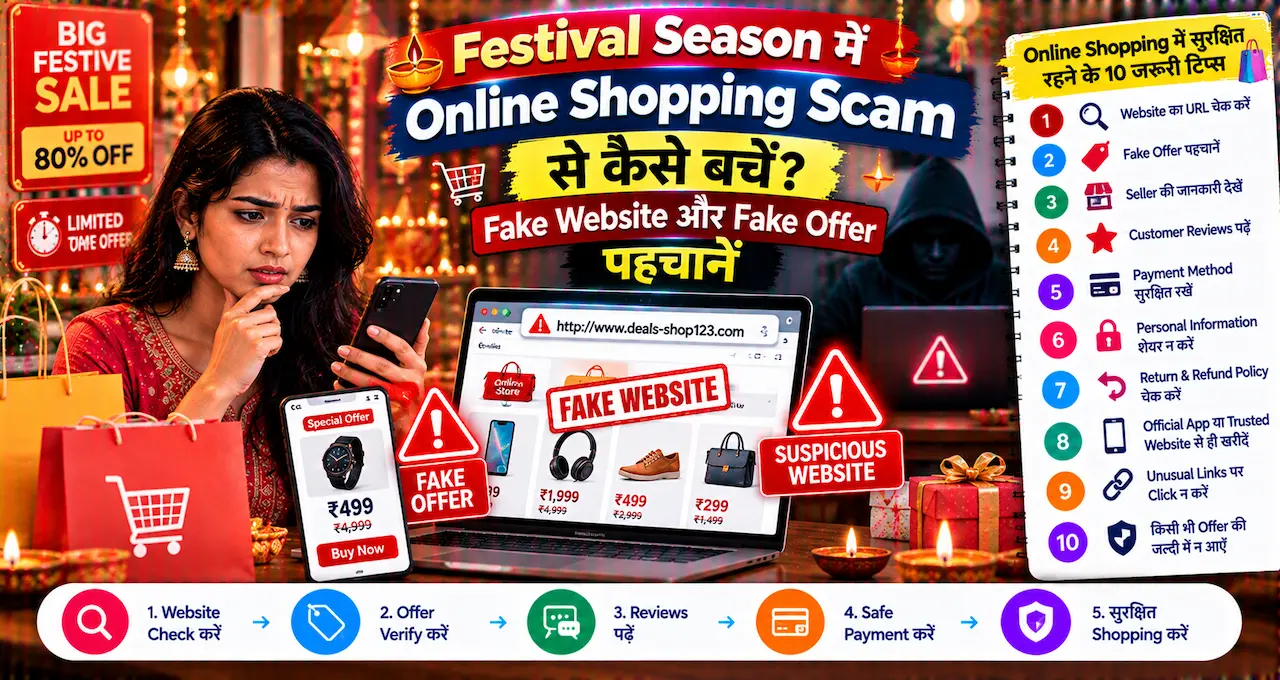
2. Official Domain Verify करें
Popular websites की fake copies बनाई जा सकती हैं।
Google ad या random message से आए link पर click करने से पहले domain spelling check करें।
3. Free का मतलब Unlimited नहीं होता
कई websites freemium model पर काम करती हैं।
Basic feature free हो सकता है, जबकि:
- higher quality
- bulk processing
- larger files
- premium templates
- AI credits
paid हो सकते हैं।
4. Important File की Original Copy रखें
PDF convert या image compress करने से पहले original file delete न करें।
Conversion fail हो सकता है या quality बदल सकती है।
5. AI Output को Verify करें
Writing और translation tools useful assistants हैं।
लेकिन generated या rewritten content का meaning, facts और tone manually check करें।
6. Copyright का ध्यान रखें
किसी image को internet पर मिल जाने का मतलब यह नहीं कि उसे commercial project में use करने की permission है।
License check करें।
7. Password किसी Tool में Paste न करें
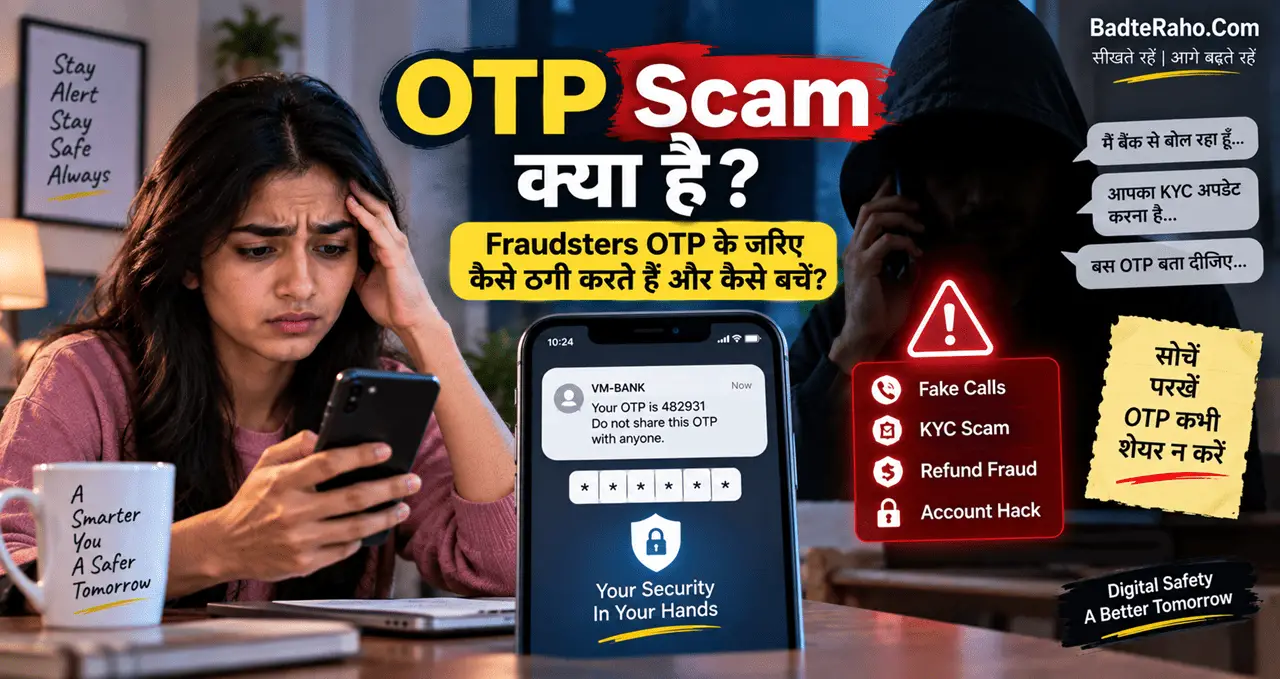
Grammar correction, translation या AI rewriting के लिए real passwords, OTP, banking PIN या private authentication details कभी paste न करें।
इतनी Websites याद कैसे रखें?
15 websites पढ़ने के बाद सबसे practical सवाल यही है:
“इन सबको याद कैसे रखूँ?”
सभी को याद करने की जरूरत नहीं है।
अपने काम के हिसाब से 5–6 websites choose करें और browser bookmarks में folders बना लें।
Documents
↓
Writing
↓
Images
↓
Research
↓
Security
उदाहरण के लिए एक blogger की bookmark list कुछ ऐसी हो सकती है:
- Canva
- TinyPNG
- Google Trends
- BuiltWith
- PrintFriendly
- VirusTotal
एक student की list अलग होगी:
- Google Scholar
- DeepL
- Dictation
- iLovePDF
- PrintFriendly
और small business owner को Canva, remove.bg और PDF tools ज़्यादा useful लग सकते हैं।
Tool collection बनाने का goal 100 websites save करना नहीं है।
Goal है—जिस काम के लिए बार-बार 10 मिनट लगते हैं, उसके लिए reliable shortcut ढूँढना।
आज से क्या करें?
आज अपने रोज़ के online work में ऐसे तीन tasks identify करें जिनमें unnecessary time लगता है।
हो सकता है:
- Images resize/compress करना
- PDF merge करना
- English email check करना
- Research sources ढूँढना
- Suspicious links verify करना
फिर इस list से सिर्फ़ उन्हीं tasks के relevant tools test करें।
हर नई website को bookmark करने की जरूरत नहीं है।
जो सच में आपके workflow को आसान करे, सिर्फ़ वही रखें।
आख़िर में एक छोटी सी बात
Useful website वही नहीं है जिसमें बहुत सारे features हों।
Useful website वह है जो आपकी किसी real problem को कम steps में solve करे।
किसी के लिए Google Scholar सबसे valuable tool होगा, किसी के लिए Canva, किसी के लिए Dictation और किसी के लिए VirusTotal।
इसलिए internet tools को collect करने के बजाय अपना छोटा सा personal toolkit बनाना बेहतर है।
जब भी कोई repetitive online task सामने आए, एक simple सवाल पूछें:
“क्या इस काम को आसान करने के लिए कोई reliable web tool मौजूद है?”
कई बार answer हाँ होगा।
इन 15 websites में से कौन-सी website आपको सबसे useful लगी और किस काम के लिए? अगर ऐसी कोई useful website आप regularly use करते हैं जो इस list में नहीं है, तो उसका use-case भी share कर सकते हैं।